
Google continues to roll out small but useful improvements to Slides and Drawings. Three of these updates affect how you and your students work with Shapegrams.
New Selection Handles
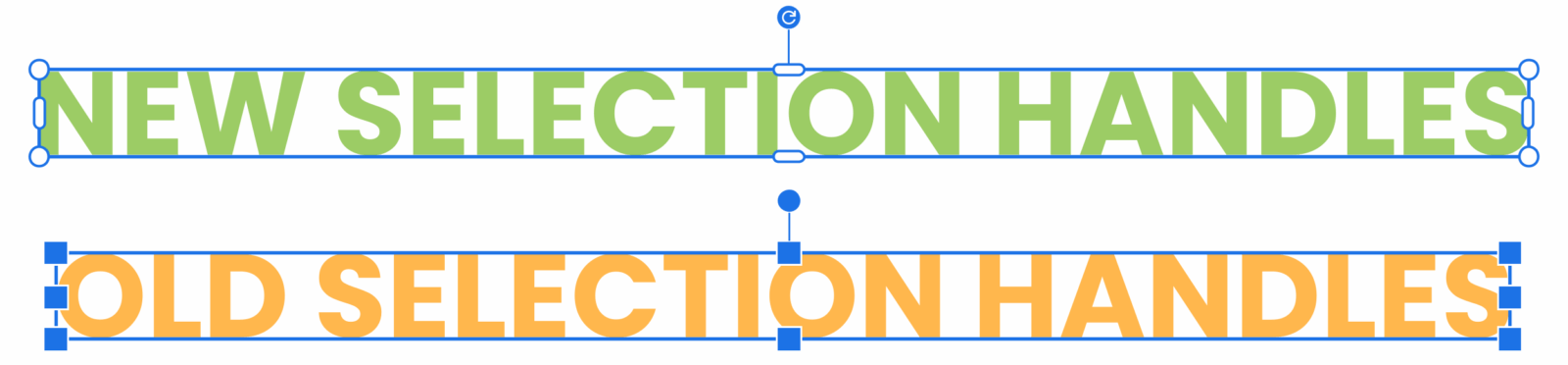
Before the update, a selected object would be surrounded by 8 blue squares. You would resize the object by dragging any of the blue squares.
Now selected objects have four circles, one in each corner. Resize the selection by dragging one of the circles.
Selected objects are also surrounded by four pill shapes, one on each side. Dragging these stretches or squishes the object horizontally or vertically.
Proportional Resizing
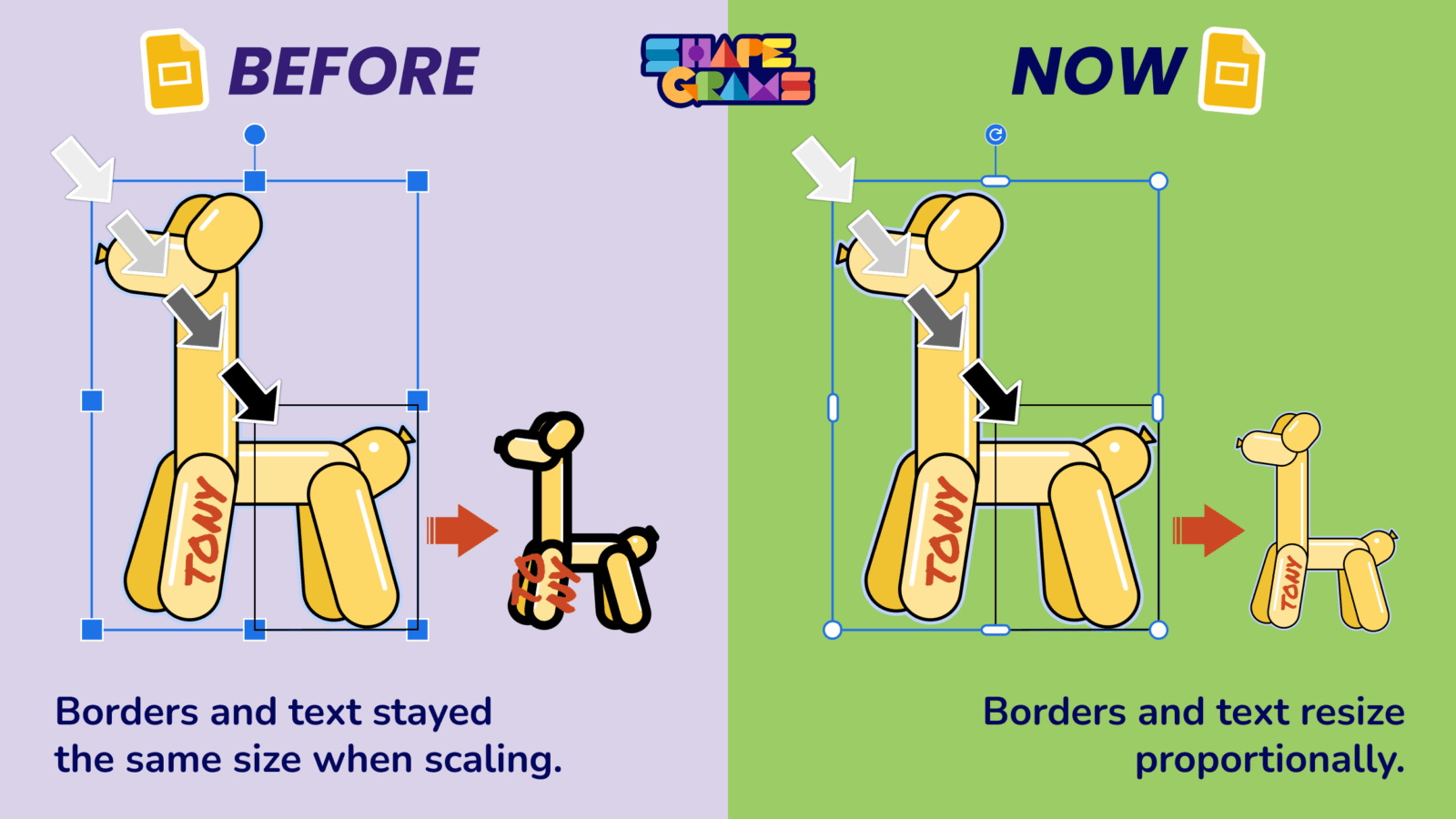
With more than one object selected, dragging a circle scales the entire object proportionally, so you don’t have to worry about squashing and stretching. (Previously, you would need to hold down Shift and you would drag a blue square to keep it proportional.)
Not only are dimensions kept the same, but text and any borders are also scaled to match. While this might not seem like a big change, I very much welcome it. I have wasted a lot of time adjusting mismatched text and borders after resizing designs in Google Slides.
Arrow Key Nudges
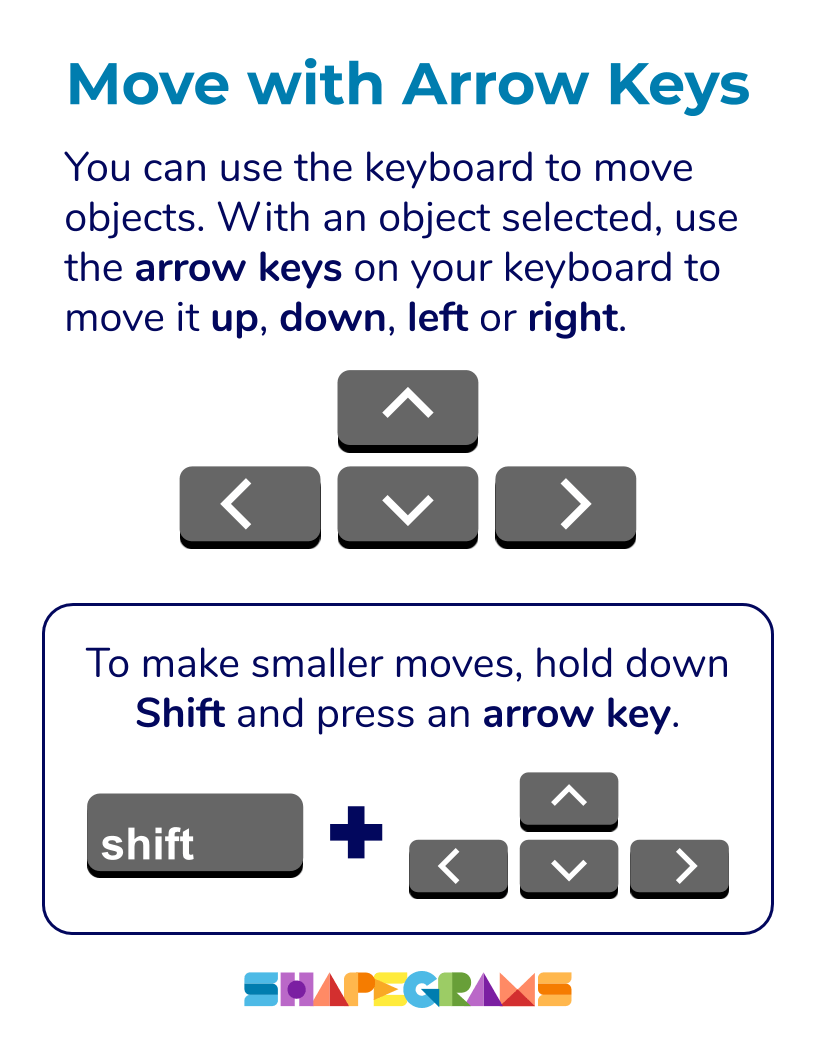
The arrow key shortcuts have flipped. Pressing an arrow key now moves an object by 1 pixel. Holding Shift while pressing an arrow key moves it in larger 5-pixel steps. This is the opposite of how it used to work.
How do these updates affect Shapegrams?
I’m not able to redo the videos for the existing 68 Shapegrams lessons since it took years to record and edit them. However, I did update the PDF posters to match the new controls. I will revise design tips within Shapegrams documents when possible.
The good news is that students will still be able to follow along, even with references to the older controls. In fact, this is a great chance to practice adaptability. Our digital tools keep evolving, and learning how to adjust to small changes is a valuable skill.